How to Create a Free Cover Letter with MojCV
A step-by-step tutorial for the MojCV cover letter builder. Learn the two ways to create a letter, the quick builder and the AI writer, then choose a template and download a free PDF.
Last updated: 29/9/2026 · Author: MojCV Team · Reviewed by: HR Specialists
Last updated: 29/9/2026
Author: MojCV Team · Reviewed by: HR Specialists
Two Ways to Create a Cover Letter with MojCV
MojCV includes a free cover letter builder with two ways to get your letter written. Both use the same editor, the same templates, and the same free PDF download.
Which Type Should You Use?
A letter started with AI is still fully editable, so you always have the final say on the text.
How It Works in 5 Steps
Choose how to start
Write the letter yourself or generate a draft with AI.
Write or generate your letter
Type your own text, or let MojCV draft it from your CV and a job description.
Add your details
Sender, recipient, role, and signature.
Choose a template
Pick a layout and switch any time without losing your text.
Preview and download
Review the letter and download a free PDF with no watermark.
Type 1: Write Your Cover Letter in the Quick Builder
The quick builder is the fastest way to a finished letter. You do not need an account or a CV. Open the cover letter builder and start typing.
Step 1: Write Your Letter
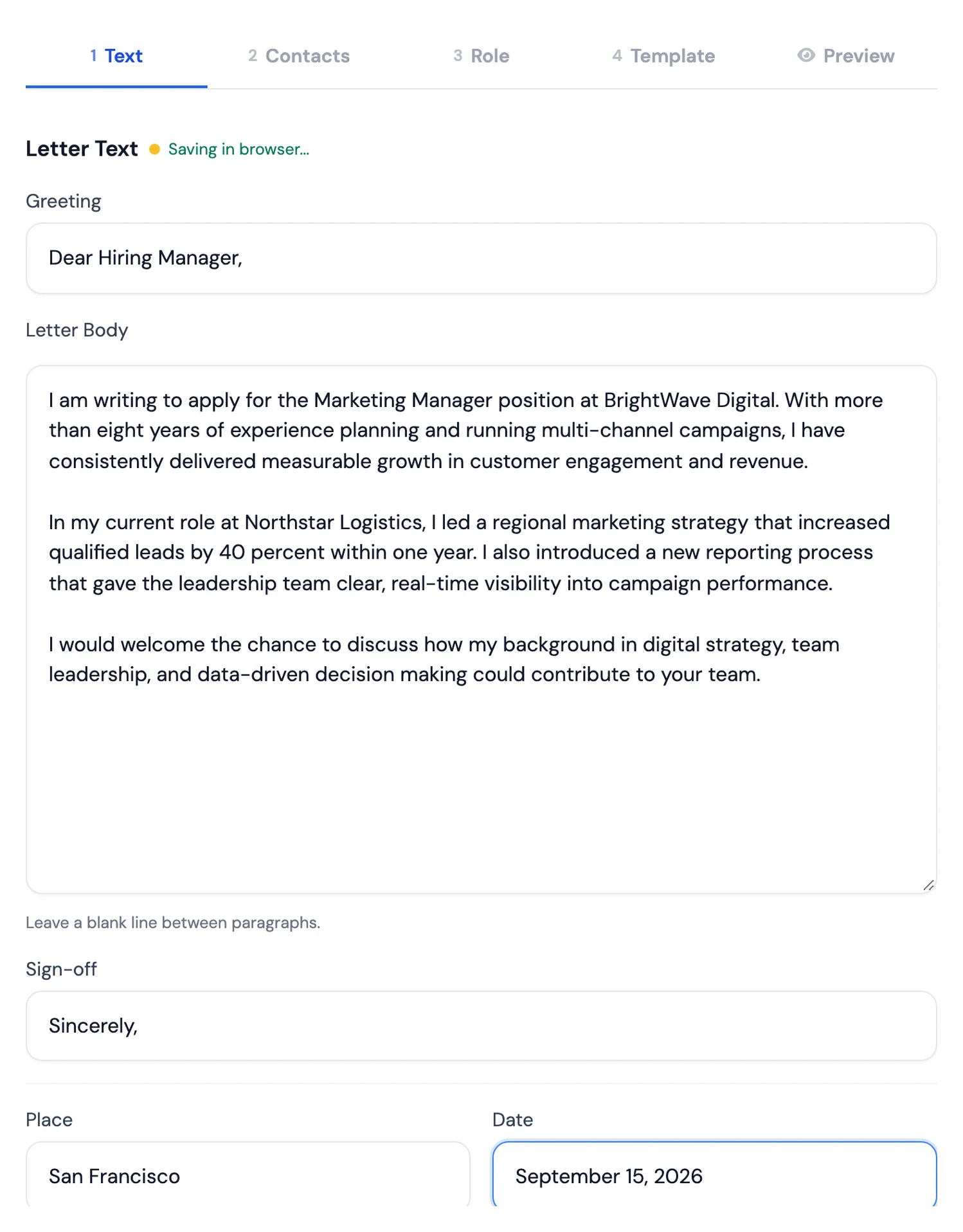
Write your letter in plain text. Add a greeting, your main text, and a sign-off. Leave a blank line between paragraphs and MojCV keeps the spacing clean in every template. You do not need to format anything.
Your draft is saved in your browser as you type, so you will not lose it if you leave the page.
Step 2: Save and Continue
Click Save and continue. The first time you save or download, MojCV creates your private link automatically, the same way it does for CVs. There is still no email or password. Save the link if you want to reopen your letter later or on another device.
Step 3: Add Your Details
The editor then guides you through the rest of the letter:
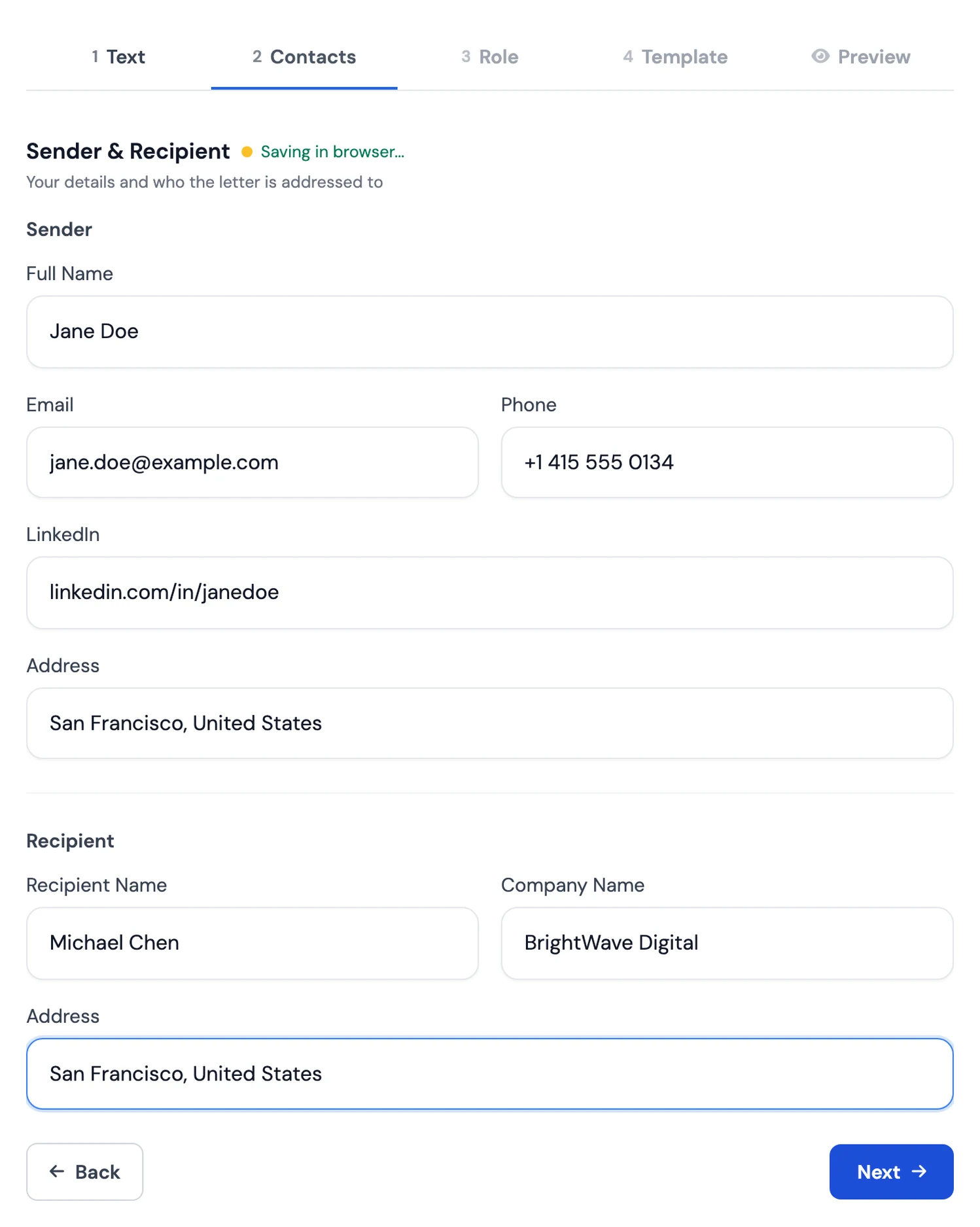
- Sender and recipient. Your name and contact details, and the company and person you are writing to.
- Role details. The position you are applying for and other details about the role.
- Signature. Use your typed name, or upload an image of your handwritten signature.
You can leave out anything you do not need. A live preview shows the letter as you fill in each part.
Step 4: Choose a Template and Country Format
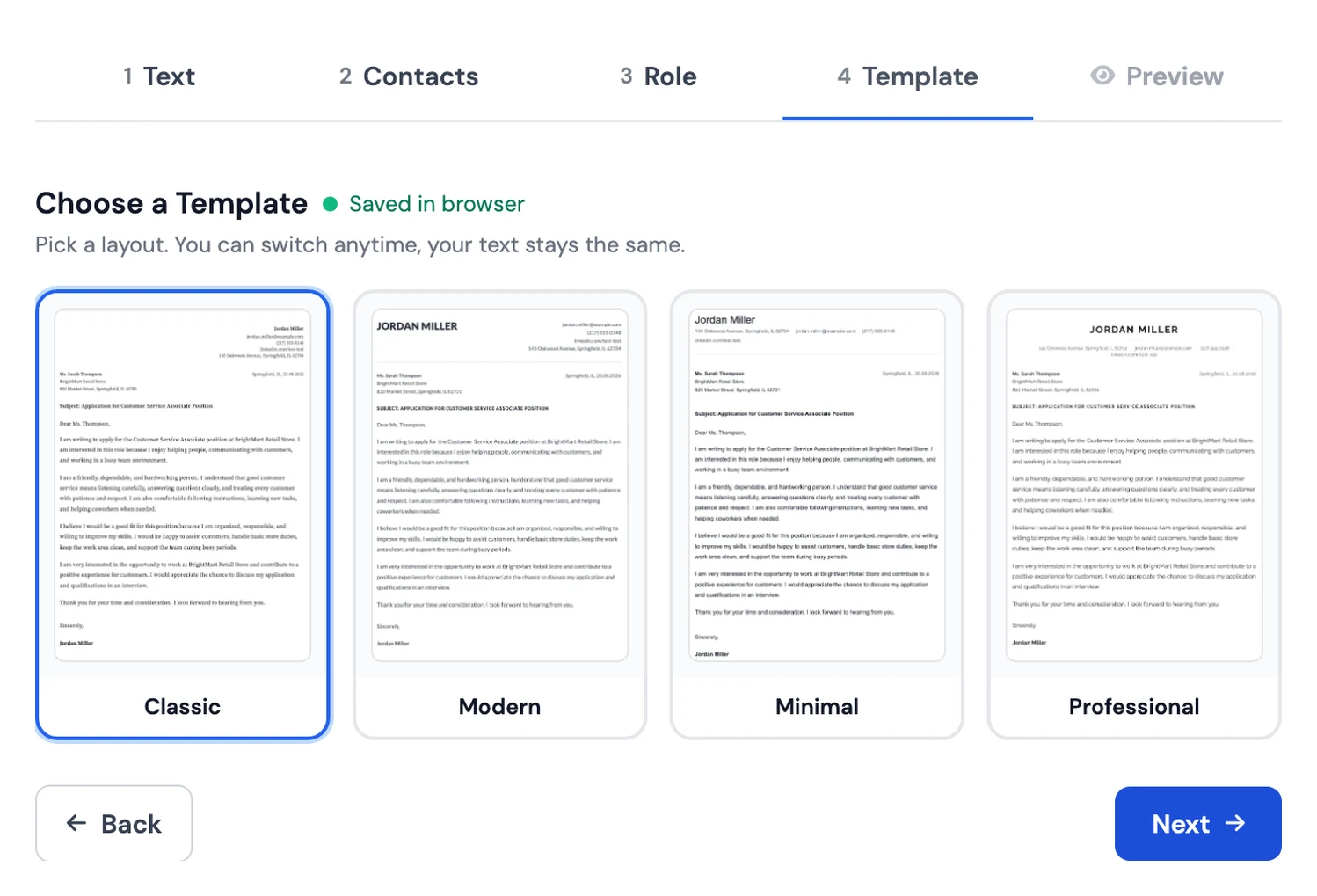
Pick a layout. MojCV offers four cover letter templates: classic, modern, minimal, and professional. Your text stays the same when you switch, only the design changes.
Then choose the country you are applying to. MojCV adjusts the date, the address layout, and the letter format to match local conventions. For Germany, an extra Enclosures field lets you list attached documents below your signature.
Step 5: Preview and Download
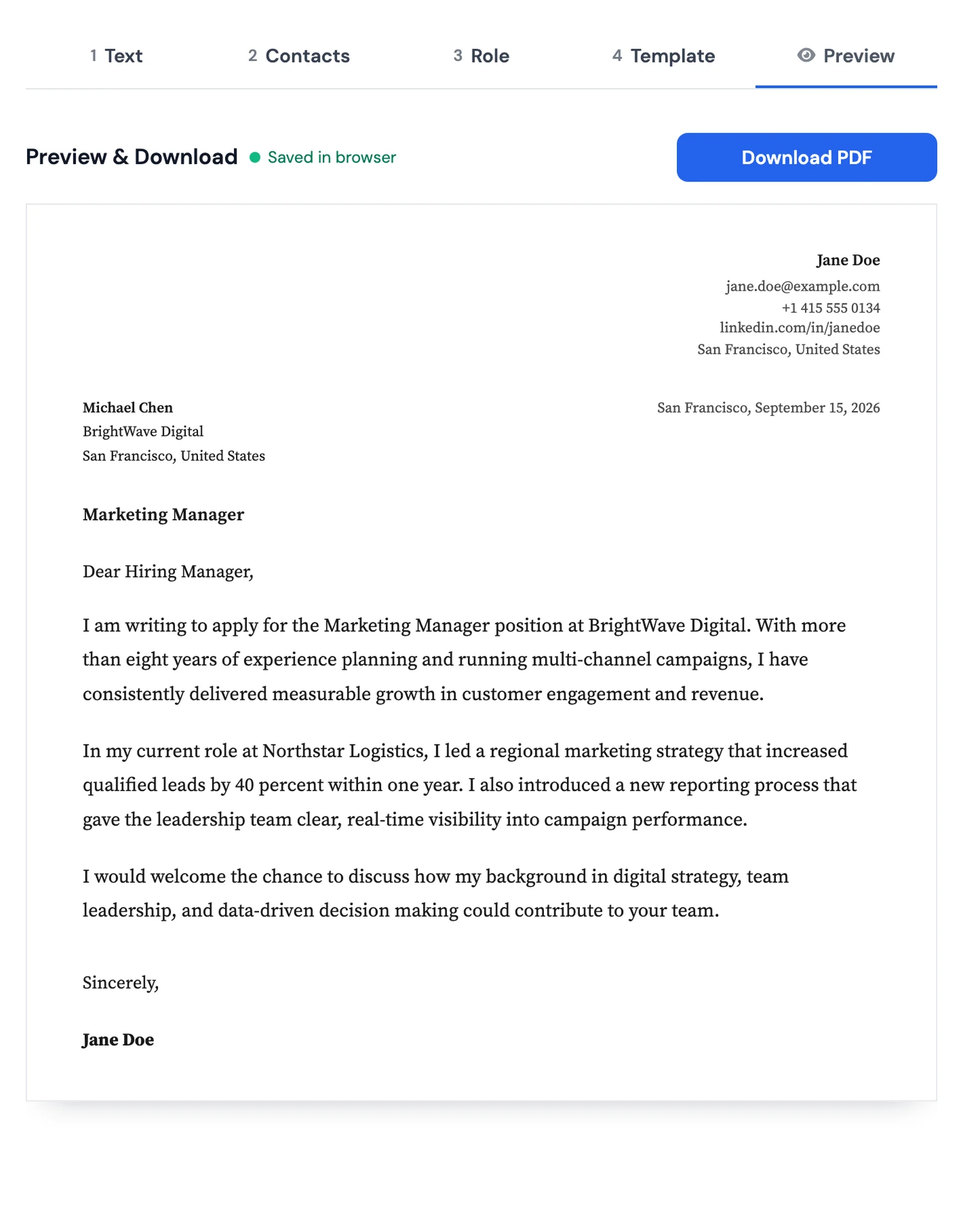
Open Preview & Download to see the finished letter in your chosen template. If something needs changing, go back to the editor. When it looks right, click Download PDF.
Type 2: Generate a Cover Letter with the AI Writer
The AI cover letter writer creates a first draft for you. It uses two things: a CV you already built in MojCV, and the job description you paste in. Because it works from your real experience, the draft is tailored to the job instead of generic.
You need a CV first
The AI writer works from a saved MojCV CV. That CV needs your name, your contact details, and at least one work or education entry. If you do not have one yet, follow our guide to creating a CV with MojCV first.
Step 1: Open the AI Cover Letter Writer
There are three ways in. Use the AI cover letter writer page, click Create AI Cover Letter in My Documents, or use the AI cover letter icon next to any CV in your list.
Step 2: Select a CV and Paste the Job Description
- Select a CV. Choose the CV the letter should be based on.
- Paste the job description. Paste the job ad or the role details you want the letter to respond to.
- Add notes (optional). Mention what to emphasize, the tone you want, or any extra context.
Step 3: Generate the Draft
Click Generate Cover Letter. MojCV writes the text into a new draft and opens it in the editor.
Step 4: Edit the Draft in Your Own Words
Treat the result as a starting point. Read it through, correct anything that does not sound like you, and add details only you know. You can edit any part of the text or generate a new version if you want a different approach.
Step 5: Finish the Letter
From here the process is the same as in the quick builder. Check your sender and recipient details, add the role details and a signature, choose a template and country format, then preview and download your PDF.
Cover Letter Templates
Both types share the same four templates, so the choice of how you write the letter never limits how it looks.
- Classic. A clean, conventional layout with formal structure and generous spacing.
- Modern. A contemporary layout with stronger hierarchy and a crisp top section.
- Minimal. A stripped-back layout that keeps the focus on the writing.
- Professional. A refined layout with a polished header and confident visual rhythm.
If you already have a CV, pick a cover letter template that feels similar so your two documents look like a set.
Manage Your Cover Letters in My Documents
Saved cover letters appear under the Cover Letters tab in My Documents, next to your CVs. Open your private link to see them. For each letter you can edit it, view and download the PDF, duplicate it, or delete it.
Duplicating is the easiest way to write a letter for a second job. Copy the letter you already have, change the company, role, and the details that make it specific, and download the new version. You can also create a letter straight from a CV in the CV list.
Frequently Asked Questions About the MojCV Cover Letter Builder
Do I need an account to create a cover letter?
No. The quick builder works without an account, email, or password. MojCV gives you a private link the first time you save or download. The AI writer works from a CV saved in your private MojCV workspace, which also needs no password or email.
Is the cover letter builder free?
Yes. Writing, editing, and downloading cover letters is free, and you can download as many PDFs as you need. There is no watermark.
What is the difference between the quick builder and the AI writer?
In the quick builder you write the letter yourself. The AI writer drafts it for you from your CV and a job description, and you edit the result. Both give you the same editor, templates, and PDF download.
Can I edit the letter the AI writes?
Yes. The AI output is a draft. You can change any part of the text, or generate a new version, before you download.
Can I change the template after I write my letter?
Yes. Your text stays the same when you switch between the classic, modern, minimal, and professional layouts.
Can I create more than one cover letter?
Yes. Create a separate letter for each job, or duplicate an existing one and adjust it.
Is a cover letter the same as a motivation letter?
In most cases, yes. In parts of Europe a cover letter is often called a motivation letter, and you can use the builder for either.
Ready to Create Your Cover Letter?
Write it yourself in the quick builder, or let the AI writer prepare a first draft from your CV. Either way, you finish with a clean PDF in a few minutes.